Unscheduled meetings can be more productive than scheduled ones.
This might seem counter intuitive so let me explain.
Some jobs involve doing lots of things at once. Or at least in very rapid succession. For example, a secretary really needs to know how to multitask. Other jobs are more "single threaded", like software development. They usually require a lot concentration, which means it takes a while to get into "the zone" and become truly productive. No programmer says "great, I have about 4 minutes free until my next meeting, let's use the time to do some programming". There's a ramp-up process, and it's really hard to enter this process when you know you're going to interrupt it very soon.
Enough theory, let's take an example. It's 9:30 AM and you have a team status meeting at 10:00. Are you going to start working on debugging that tricky crash, or are you going to pass the time with emails and make yourself coffee? You know it's going to take about 10 minutes just to warm up that cache that you keep in your skull, and there's nothing worse that having to stop in the middle of productive work. So you're not going to bother. You will procrastinate instead. StackOverflow. Facebook. Reddit.
If it weren't for that 10:00 meeting, you would have dived into work without hesitation. Regardless of how productive you think meetings are in general, all other things considered equal, you'd get more work done if instead of scheduling the meeting at 10:00 somebody would have just popped into your office and said "hey, got a sec to talk?". Scheduled meetings are a major source of procrastination.
Now granted, not all meeting can be impromptu. Some, maybe most, actually require preparation and coordination, so there's not much we can do about those. But some recurring meetings are just a way to catch up. Daily status meetings, morning Scrum stand-up meetings, etc.
The cure is simple. Don't schedule daily recurring meetings. Just let them happen. Let's say you're doing Scrum and this involves a stand-up meeting for 10 minutes every morning. If you schedule it for a fixed time-slot every time you're basically scheduling procrastination for the 20 minutes preceding it. So don't. Just wait until everybody's in and then announce "stand-up meeting in 5 minutes". That gives everybody just enough time to finish off what they're doing, but on the other hand there's no longer this meeting looming on your calendar each morning, making you avoid getting into any meaningful effort before it.
Don't schedule procrastination into your routine.
Sunday, March 17, 2013


Monday, March 11, 2013
Scrum with Gigantt
If your company is practicing Scrum as a project management methodology, or if you're interested in getting started with Scrum, we've created a very useful Scrum recipe that you can copy into your own plan in Gigantt.
Scrum is a pretty well defined process which basically looks like this:

We created a 4-minute video tutorial that dives into the anatomy of a Scrum sprint and explains the basics of the Scrum methodology. If you want to learn about Scrum and can only spare four minutes, this video is for you. :)
You can find more recipes and demo videos in our Gigantt Examples page. We'll be adding more and more of these recipes to help our users get a head start planning their projects in Gigantt.

Scrum is a pretty well defined process which basically looks like this:
We created a 4-minute video tutorial that dives into the anatomy of a Scrum sprint and explains the basics of the Scrum methodology. If you want to learn about Scrum and can only spare four minutes, this video is for you. :)
(hd, audio)
You can find more recipes and demo videos in our Gigantt Examples page. We'll be adding more and more of these recipes to help our users get a head start planning their projects in Gigantt.
Thursday, January 24, 2013
Recipes, Greenhouses and Copying Between Plans
There are all kinds of repeated work that you find yourself doing: scrum sprints, version release procedures or even following some setup guide. These are all examples of things you should only be planning once and then executing a few times. In Gigantt, this is trivial to do. You just copy and paste some existing work and repeat it.
Let's see an example. Something close to home. When we, in Gigantt, are about to release a new version, we first release it to our QA environment for thorough testing. This is like a dress rehearsal for the product before it goes live, so there are quite a few steps that must be followed along the way.

This is basically a check list, and we repeat it every time we release a new version to the QA team. But unlike a traditional check-list, all the tasks here are already estimated, their order and dependencies are well known in advance, and each task is assigned to the relevant person.
It's all contained in one big task called "QA Release Procedure":
 Whenever we plan a new release cycle for Gigantt, all we have to do is just copy and paste this task into the appropriate place in the plan. In this case, we plop it inside "Release to QA":

Pretty simple, but powerful stuff. It's powerful because it lets you keep all these "recipes" in Gigantt for stuff that you do repeatedly, so you have your documentation right there in your work plan. If you decide to add another step to your recipe, you add it to that template task and be sure it will never be skipped in the future.
So what's new? Copying and pasting tasks is a feature we've had from day one. But now you can also copy and paste tasks between plans. This means you can create separate "repository" plans just to keep track of recipes or experimental plans. You don't need to "pollute" your project's work-plan with recipe tasks that don't really belong there. For example, you wouldn't want these recipes to actually get scheduled by our automatic task scheduler - you want them to just sit there so you could copy them every now and then.
You can also use "greenhouse" plans as a place for very early project planning. Meaning, you can create a work-plan for a new project in its own plan, and not worry about messing up everyone's schedule until you've properly planned and estimated all those new tasks. When it's done, you copy it into the "real" plan in one step.
Copying tasks between plans is the same as regular copying. Ctrl+C puts tasks into your visual clipboard; then you open the target plan (e.g. in a new tab) and paste there.
Let's see an example. Something close to home. When we, in Gigantt, are about to release a new version, we first release it to our QA environment for thorough testing. This is like a dress rehearsal for the product before it goes live, so there are quite a few steps that must be followed along the way.
This is basically a check list, and we repeat it every time we release a new version to the QA team. But unlike a traditional check-list, all the tasks here are already estimated, their order and dependencies are well known in advance, and each task is assigned to the relevant person.
It's all contained in one big task called "QA Release Procedure":
So what's new? Copying and pasting tasks is a feature we've had from day one. But now you can also copy and paste tasks between plans. This means you can create separate "repository" plans just to keep track of recipes or experimental plans. You don't need to "pollute" your project's work-plan with recipe tasks that don't really belong there. For example, you wouldn't want these recipes to actually get scheduled by our automatic task scheduler - you want them to just sit there so you could copy them every now and then.
You can also use "greenhouse" plans as a place for very early project planning. Meaning, you can create a work-plan for a new project in its own plan, and not worry about messing up everyone's schedule until you've properly planned and estimated all those new tasks. When it's done, you copy it into the "real" plan in one step.
Copying tasks between plans is the same as regular copying. Ctrl+C puts tasks into your visual clipboard; then you open the target plan (e.g. in a new tab) and paste there.
Monday, January 21, 2013
Mouse Wheel Scrolling

The short story: as of today, the mouse-wheel is used to scroll up & down in Gigantt, not zoom in & out. To zoom, use the zoom buttons or the keyboard shortcuts (+, -).
From day one we envisioned Gigantt as a zoom-able mind-map for project planning. Our inspiration came, among other sources, from online mapping applications, where the mouse wheel is used to zoom in and out. For example, that's how Google Maps does it, and we tried to make zooming as intuitive as possible to anybody who's ever used Google Maps (which is everyone, right?).
This, it turns out, was dead wrong. For too many of our users, who are very accustomed to using the mouse wheel to scroll up & down, this default zoom behavior was very surprising and hard to get used to. It is mainly for their sake that we're introducing this change. To our dear, loyal, existing users, we're sorry for the hassle of having to get used to this new behavior.
Another reason is we observed that most of our users don't really do a lot of partial zooming. They either step into a task completely (e.g. by double clicking on it) or step outside (by double-clicking outside or on the Zoom Out button). Zooming in partially is something our users do rarely - usually when they have too many tasks in the same container and they're too small to read comfortably (hint: use the collapse feature).
The one place where incremental, partial zooming is very useful is Team View. In team view you can zoom out and see thousands of tasks on the screen at the same time, so it's really important to be able to zoom just enough to see what you want to see. We think this is still pretty easy to do with the zoom buttons. Again, you can also zoom with the keyboard shortcuts +/- and you can change the time resolution with Ctrl +/-.
Sunday, January 6, 2013
Color
Exciting new features have landed today.

Colored Views
Two new views that show tasks in color based on the resources assigned to them.
In both Duration and Future view you can switch colors on/off.
Colors let you focus on who's doing the work inside each task, instead of seeing the sub-task structure.
In Duration view you get a "tree-map" visualization, where the size of each colored rectangle stands for how many work-days go into each task and its sub-tasks.
In Future view you see a timeline per resource within each task. This makes it a lot easier to identify blocked tasks, who's waiting for whom - that sort of thing.
The keyboard shortcuts are still the same.
(1) Logical, (2) Duration, (3) Future, (4) Team
Hit 2 once to switch to duration view. Hit 2 again to turn color mode on, and again to turn it off.
Same with 3 (future view).
We've also beefed up the view selection drop-down. It's bigger and hopefully helps understand what each view is good for.
Customized Resource Colors
Naturally, since things are getting a lot more colorful, you can now customize your organization's resources and select the colors you like best.

New Icons
A small face-lift to our user interface to brighten things up.

Colored Views
Two new views that show tasks in color based on the resources assigned to them.
In both Duration and Future view you can switch colors on/off.
Colors let you focus on who's doing the work inside each task, instead of seeing the sub-task structure.
In Duration view you get a "tree-map" visualization, where the size of each colored rectangle stands for how many work-days go into each task and its sub-tasks.
In Future view you see a timeline per resource within each task. This makes it a lot easier to identify blocked tasks, who's waiting for whom - that sort of thing.
The keyboard shortcuts are still the same.
(1) Logical, (2) Duration, (3) Future, (4) Team
Hit 2 once to switch to duration view. Hit 2 again to turn color mode on, and again to turn it off.
Same with 3 (future view).
We've also beefed up the view selection drop-down. It's bigger and hopefully helps understand what each view is good for.
Customized Resource Colors
Naturally, since things are getting a lot more colorful, you can now customize your organization's resources and select the colors you like best.
New Icons
A small face-lift to our user interface to brighten things up.
Sunday, December 23, 2012
New Feature: Work Calendar
A big new feature coming at ya today: work-calendars.

Not everybody works the same days and hours. Work calendars let you define, first, your organization's standard work-week. That is, which days are working days and how many hours people work in general?
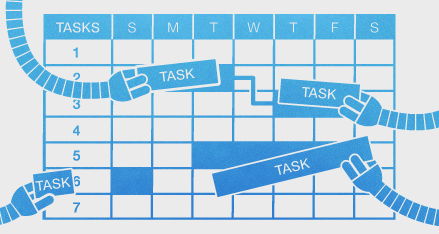 Naturally, this affects Gigantt's automatic task scheduling. With this new information the schedules you're going to get will be a lot more realistic.
You can customize further, defining the work-week of particular people or resources. This lets you handle part-time employees, resources with special availability (e.g. available only during
weekends), and so on.

Another thing you can do is define vacation periods, for everyone or for particular people. These are days during which no tasks get scheduled.
Read all about work-calendars in our support page: Work Calendars.
Not everybody works the same days and hours. Work calendars let you define, first, your organization's standard work-week. That is, which days are working days and how many hours people work in general?
Naturally, this affects Gigantt's automatic task scheduling. With this new information the schedules you're going to get will be a lot more realistic. You can customize further, defining the work-week of particular people or resources. This lets you handle part-time employees, resources with special availability (e.g. available only during
weekends), and so on.
Another thing you can do is define vacation periods, for everyone or for particular people. These are days during which no tasks get scheduled.
Read all about work-calendars in our support page: Work Calendars.
Wednesday, December 19, 2012
Fire your most irreplaceable team members now
The most replaceable employees are the irreplaceable ones.
Let's take a moment to parse this sentence carefully. It's true in two ways.
An employee that voluntarily shares his knowledge with his coworkers, keeps nothing solely in his head, but rather strives to document publicly the knowledge and know-how he acquires on the job, is the most precious employee the company has. He knows that if he quits tomorrow, he is totally replaceable, in the sense that there's nothing he would need to teach his replacement - it's all there in the open. No knowledge is permanently lost. This is the guy you never actually want to replace.
An employee that hoards knowledge and positions himself as the omniscient guru, to whom all must come for answers, should be the first one fired. Sometimes people do this unintentionally. They don't see a problem with having all the answers. That's why managers need to instill into them the following mantra: the stuff you keep in your head should only be a copy.
Let's call it brain cache.
What you bring to the table as an employee is your attitude, your ability to reason, make smart decisions and learn. Everything else is basically brain cache. A cache is a powerful thing, mind you. But if the problem of replacing an employee boils down to warming up a new brain cache - that's at least manageable.
p.s.
I'm trying a new format in this post: highlighting sentences for readers to quickly skim the text. The idea is that if you read only the highlighted text you should get a succinct version of the post, but still in sentences that make sense together and form a continuous and coherent version of the text on their own.
As an avid blog follower, I find myself practically always skimming posts - sometimes hundreds each day. I don't really read any blog post word-for-word unless I know for sure it's interesting enough. Especially wordy ones (like this one). There are just too many of them. I suspect I'm not the only one who does this. If you're reading this (and you're able to see the subtle HTML formatting I've applied), I'd be interested to hear you opinion. Is this actually helping you read, or is it just annoying?
Let's take a moment to parse this sentence carefully. It's true in two ways.
An employee that voluntarily shares his knowledge with his coworkers, keeps nothing solely in his head, but rather strives to document publicly the knowledge and know-how he acquires on the job, is the most precious employee the company has. He knows that if he quits tomorrow, he is totally replaceable, in the sense that there's nothing he would need to teach his replacement - it's all there in the open. No knowledge is permanently lost. This is the guy you never actually want to replace.
An employee that hoards knowledge and positions himself as the omniscient guru, to whom all must come for answers, should be the first one fired. Sometimes people do this unintentionally. They don't see a problem with having all the answers. That's why managers need to instill into them the following mantra: the stuff you keep in your head should only be a copy.
Let's call it brain cache.
What you bring to the table as an employee is your attitude, your ability to reason, make smart decisions and learn. Everything else is basically brain cache. A cache is a powerful thing, mind you. But if the problem of replacing an employee boils down to warming up a new brain cache - that's at least manageable.
p.s.
I'm trying a new format in this post: highlighting sentences for readers to quickly skim the text. The idea is that if you read only the highlighted text you should get a succinct version of the post, but still in sentences that make sense together and form a continuous and coherent version of the text on their own.
As an avid blog follower, I find myself practically always skimming posts - sometimes hundreds each day. I don't really read any blog post word-for-word unless I know for sure it's interesting enough. Especially wordy ones (like this one). There are just too many of them. I suspect I'm not the only one who does this. If you're reading this (and you're able to see the subtle HTML formatting I've applied), I'd be interested to hear you opinion. Is this actually helping you read, or is it just annoying?
Subscribe to:
Posts (Atom)